
WhatsApp connects to Deskie through integrations with third-party services that allow you to work with the official WhatsApp API:
– integration with Twilio (provider of the official WhatsApp Business API);
– integration with 1msg (provider of the official WhatsApp Business API).
Integration with Twilio
Twilio is a service with a lot of features, including being the official provider of the WhatsApp Business API.
Configuring WhatsApp Business in Twilio
If you don't have a Twilio account yet, check out the information on rates and how the WhatsApp Business API works before you sign up.
After registering, you need to decide which number to connect to WhatsApp Business, and there are two options:
if you have your own number, activate it to work with WhatsApp through Twilio;
if you don't have a number, get it from Twilio (a list of countries with available numbers), but first, check out the article to understand which numbers are suitable for connecting to WhatsApp Business.
The next step is to request access to the WhatsApp Business API and connect WhatsApp Business to Twilio.
Connecting to Deskie
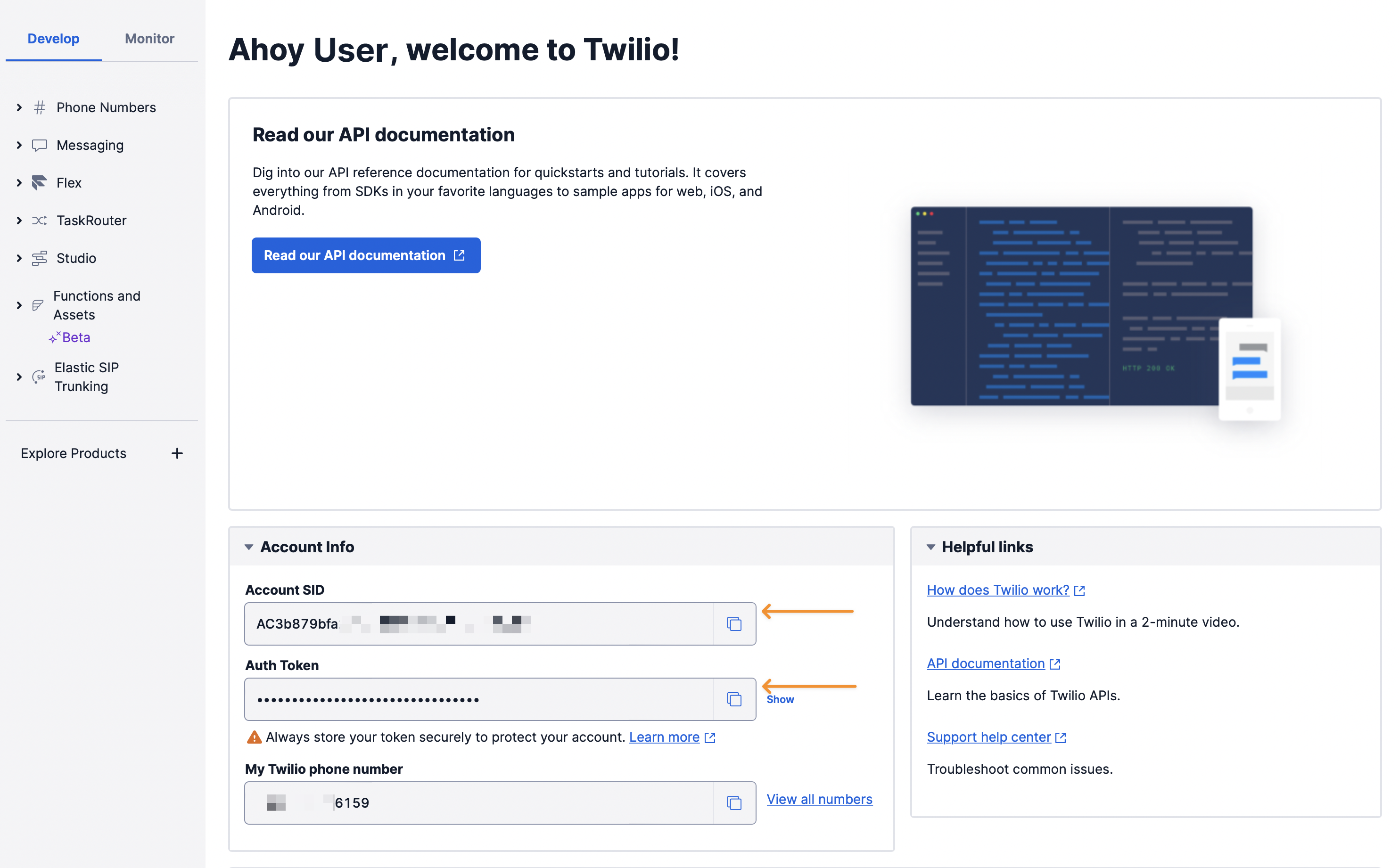
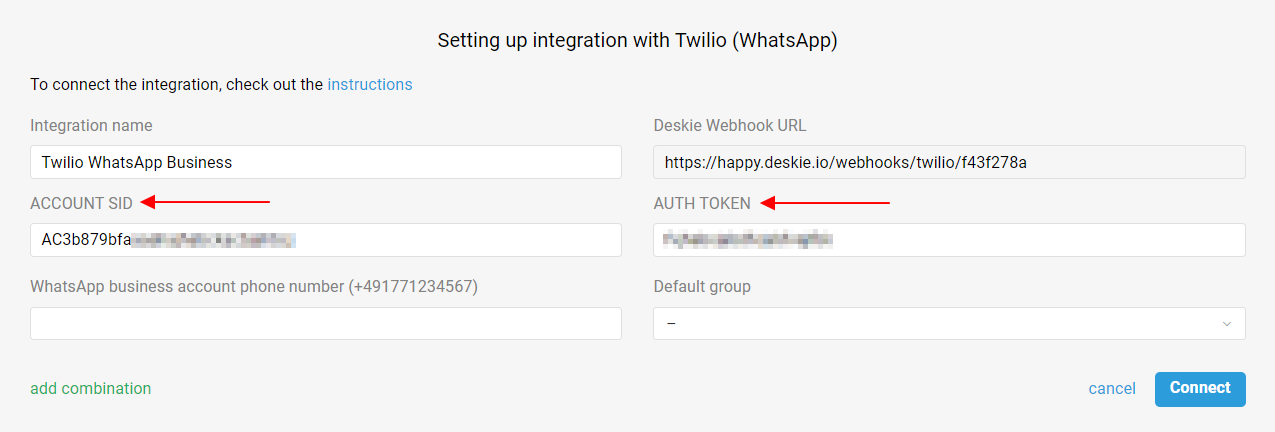
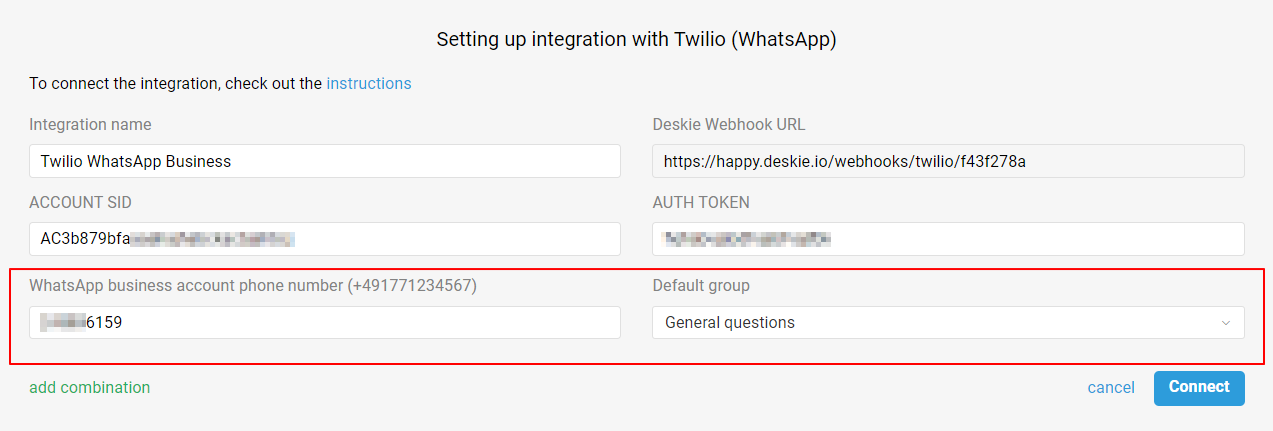
1. On the main console page of your account, copy the Account SID and Auth Token and specify them in the Twilio integration connection form in Deskie: administrator account → Settings section → Integrations subsection → Add integration → WhatsApp block.
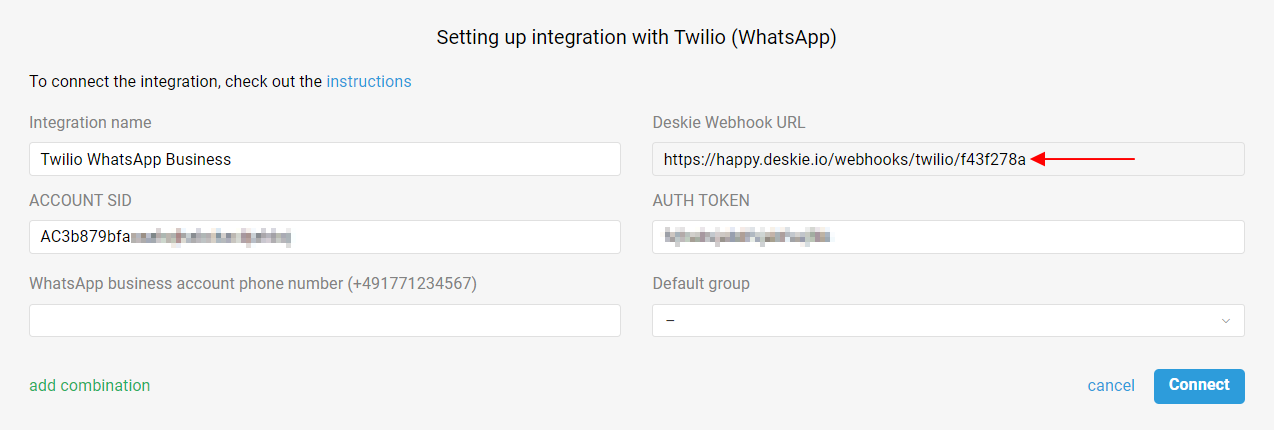
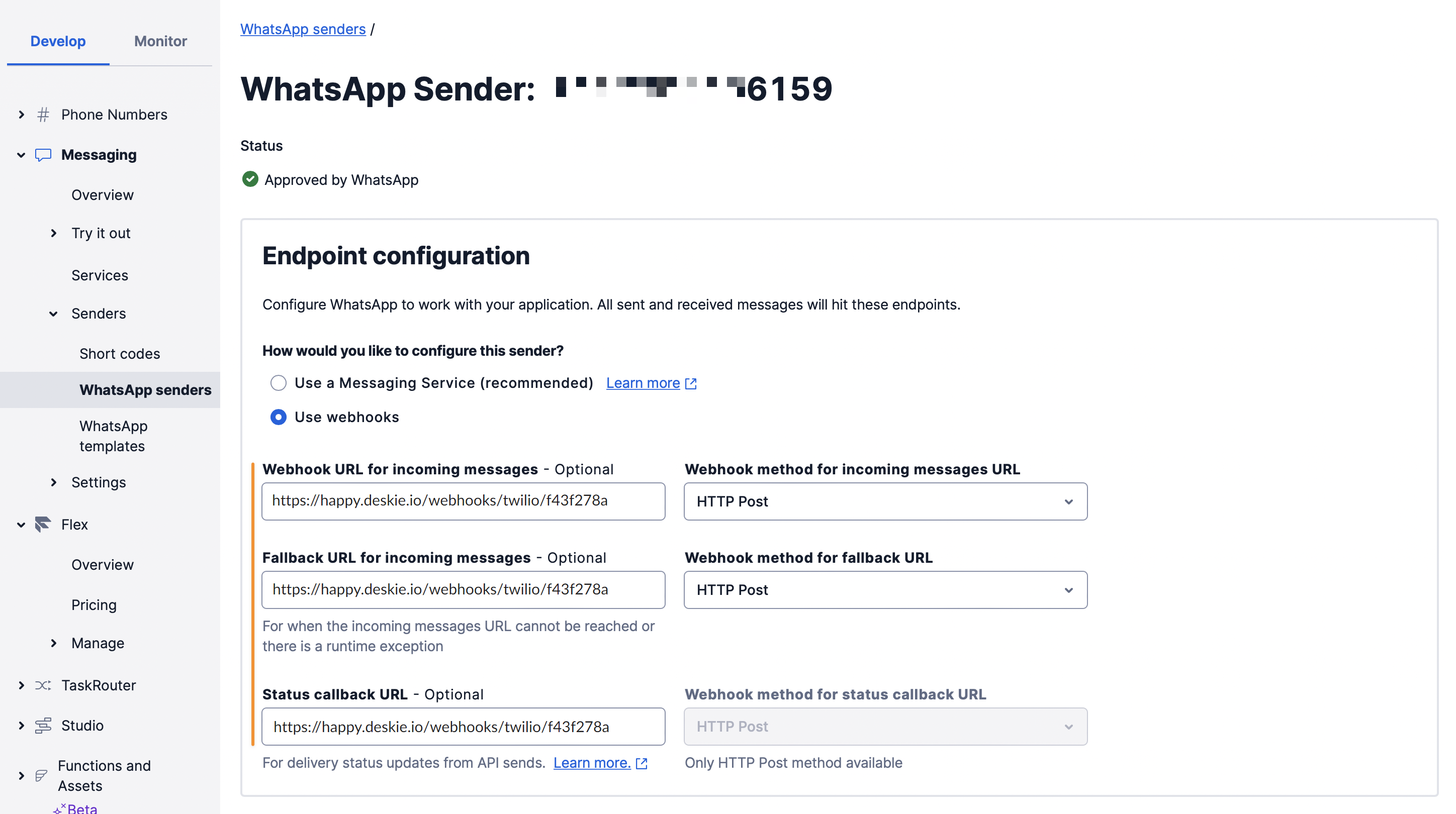
2. In the Twilio console, follow the path: Messaging → Senders → WhatsApp senders → Edit sender. On the page that opens, in the Endpoint configuration block, select the use webhooks option, and in all fields specify the Deskie Webhook URL from the integration connection form.
3. In the integration connection form in Deskie, specify the phone number configured in Twilio as WhatsApp Sender, select the default group that will receive cases from this number, and click the "Connect" button.
Important points
a. WhatsApp has a "24-hour Window", meaning there is always a 24-hour countdown from the user's last message, during which you can send a reply. If more than 24 hours have passed since the user's last message, WhatsApp will block your response and you will only be able to send the user a paid template message as agreed with WhatsApp.
b. WhatsApp Business accounts cannot be added to group chats.
c. The limit for receiving files from users is 25 MB. Limit for sending files by agents from Deskie — 16 MB (Twilio's own limit). If you need to send larger files, you can connect integration with cloud storage.
d. To have your company name displayed in the WhatsApp chat list instead of just your phone number, you need to get a WhatsApp Official Business Account.
Communication
All cases list displays only the cases coming from asynchronous channels — users on both sides reply when it’s convenient for them. As for real-time chats, they are displayed and processed in a separate interface.
When you get a new chat (WhatsApp, Slack, Telegram, FB messages, Whatsapp, Skype, Viber, live chat), a green icon appears in the upper right corner of the agent’s account. It displays incoming chats and new chat responses:

Chats are displayed in the all cases list too, but only after they were ended:
when an agent is ending the chat, clicking “end chat” in the lower right corner;
after 10 minutes (default value) of inactivity on both sides;
when one of the automated rules is applied, that has an “end chat and set status” action (for example, if you don’t plan to process chats and want to get them as cases in the all cases list):